

AnyLogic supports IntelliSense (code completion). This significantly simplifies the process of typing code, as it means that you do not need to type the full names of functions, variables, and parameters. You can use the IntelliSense wizard to insert a variable name or a function call.
The wizard contains a list of variables, parameters, and functions. Simply select the required item from the list to insert it into the expression automatically.
To insert a name using the code completion wizard
- Move the cursor to the position where you want to place the element’s name.
-
Press Ctrl + Space (macOS: Option + Space). The wizard lists all model variables and predefined functions.
Each suggestion follows this pattern: name : return type - context.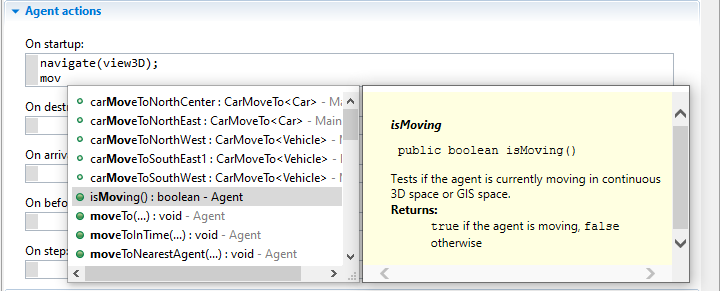 Intelli-sense wizard
name is the actual name of the class, function, or variable.
return type is the type of data recieved after using this element.
context provides information where the element is defined: the agent, the element on the diagram, or the AnyLogic engine, for example. - Either scroll to the name you want to add, or type the first few letters of the name until it appears in the list.
- To select the element, click on the name. The wizard will then display a detailed description of the selected object in a pop-up text box.
- Double-click the name to insert it into the expression.
You can change the key combination that opens the code completion wizard in the AnyLogic preferences dialog, on the Key combinations page.
Some tips for using code completion
- Use the mouse or keyboard (↑, ↓, Page Up, Page Down, Home, End, Enter) to navigate and select lines in the list.
- To view the Javadoc description for a line, click this line in the list. The wizard will display the description in a pop-up window to the right.
- To insert the selection into the editor, click or press Enter on a selected line.
- Additional specialized content assist features are available inside Javadoc comments.
This is not a complete list of elements, but it highlights the most common ones you encounter in the code completion wizard.
- Code completion
-
Icon Type Description 
Public function An action to call. Make sure to use parentheses when calling it. 
Protected function An action accessible within the current agent and its descendants. Use parentheses to call. 
Public field A publicly accessible variable, parameter, or object. 
Protected field A variable or object (like a button or a library block) accessible within this agent hierarchy. 
Java class A Java data structure. 
Enumeration (Enum) A fixed set of constants. 
Interface An structure that defines a set of functions. 
Local variable A variable defined inside the current block of code. It is only accessible within that specific code field. - Adornments
-
Adornments are small icons drawn next to elements in the code completion wizard.
Icon Type Description 
Static element Static actions and fields are shared across all instances of an element rather than belong to a single instance. 
Final element A constant value or an action that cannot be changed. Usually used for fixed settings or AnyLogic constants. 
Deprecated element An outdated element that is still available but no longer recommended. It might be removed in future versions.
A model item does not appear in the code completion list
-
Code completion uses information from the model’s source files generated when the model is built. By default, the model sources are generated automatically on every structural model change. This occurs when a new element is added to the graphical editor, when an element is renamed, deleted, or marked as ignored, and so on. As a result, the code completion information is always up-to-date. However, if you disable the Build model sources automatically advanced preference to mitigate the impact of frequent code compilations on the model development, you will need to compile your model manually. To do that, click
 Build model (F7) on the AnyLogic toolbar to to refresh your code completion wizard.
The code completion wizard is not shown
- The code completion wizard is not displayed for the Name property. In that property, you can specify a name for a model item; however, you cannot refer to other model items. Therefore, the code completion wizard is not applicable in that context.
- Code completion is not supported in the New Experiment wizard, specifically in the tables displayed when you create a Compare runs, Monte Carlo, Sensitivity analysis, or Calibration experiment.
-
How can we improve this article?
-